
Create graphics with numbers in the Artplotty Grid online design app.
If you are ready to use the tool, then click on the button below.
Requirements: Modern Internet browser
Quick glance of Artplotty Grid
Below is a quick glance of Artplotty Grid (or AP Grid or APG).
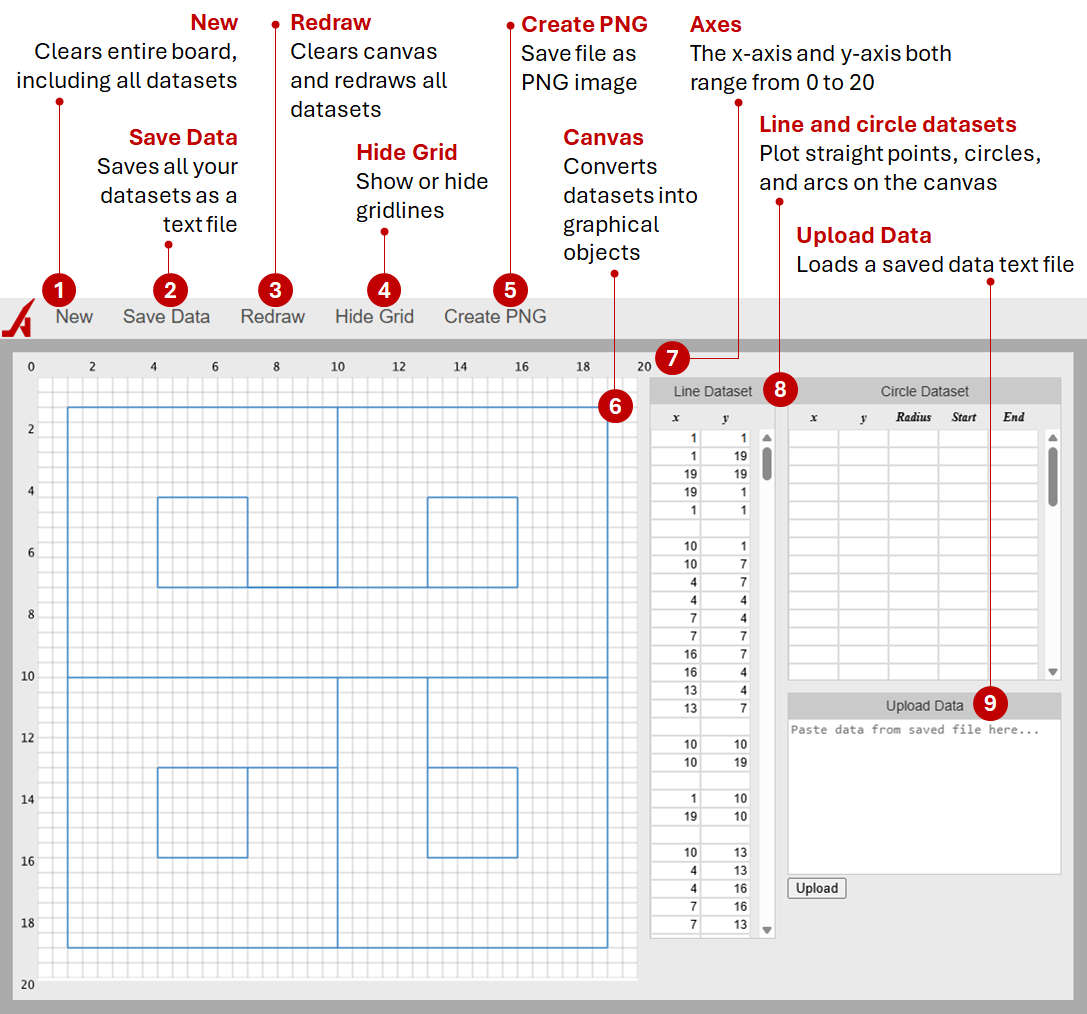
Overview
APG is great for people with a creative analytics mind, a hobbyist, or a teacher. You can teach students about geometric shapes, two-dimensional design, etc. Then, you have people who will use APG to the fullest.
Special note: Although you can use Artplotty on a mobile device, it is better if you have a bigger viewport. Thus, we suggest using a desktop computer.
Components to Artplotty
So, there are five components to APG.
- Navigation bar
- Canvas
- Line dataset
- Circle dataset
- Upload data
Navigation bar

The navigation bar allows you to start a new design, save data, redraw points, show or hide the grid, and create an image.
- New – Starts a new design
- Save data – Saves your design as a text file
- Redraw – Redraws all your points
- Hide Grid – A toggle to show or hide the gridlines on the canvas
- Create PNG – Saves your design as a 600x600 PNG image
Drawing canvas
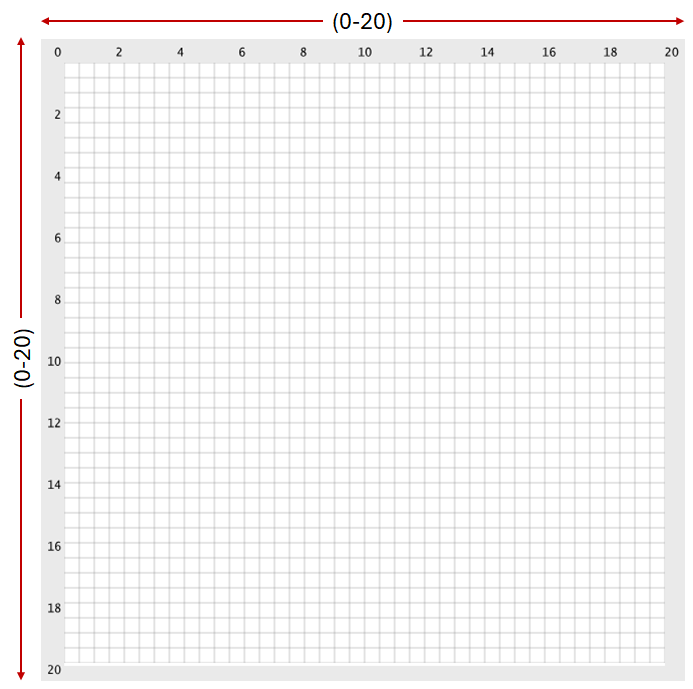
Artplotty's drawing canvas displays the points from the datasets in graphical form.
The canvas contains a x-axis and a y-axis. Both axes enable you to enter points ranging from 0 to 20. Now, that may not seem like a lot, but design opens up some possibilities.
So, 0 to 20 is actually 21 whole integer points, including zero. Both axes show increments of 2. Essentially, they are identical. However, the true grid increment is 0.5 or half a point. This expands your drawing space. Thus, allowing you to create great things.
Line dataset
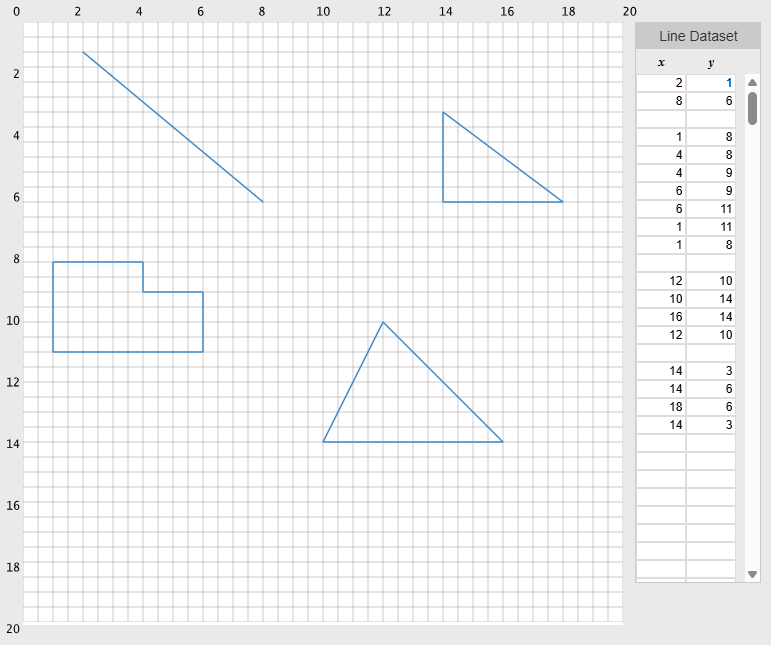
With the line dataset, you can enter points from 0 to 20. Also, decimal points are allowed. Thus, you can enter numbers like 4.23, 16.5, and 9.999. These are all valid, up to three decimal places. Any number below 0 or 20 is invalid. Invalid numbers are not plotted. If you are using a keyboard, then you can navigate through the dataset with the tab key. Or, use your mouse.
Circle dataset
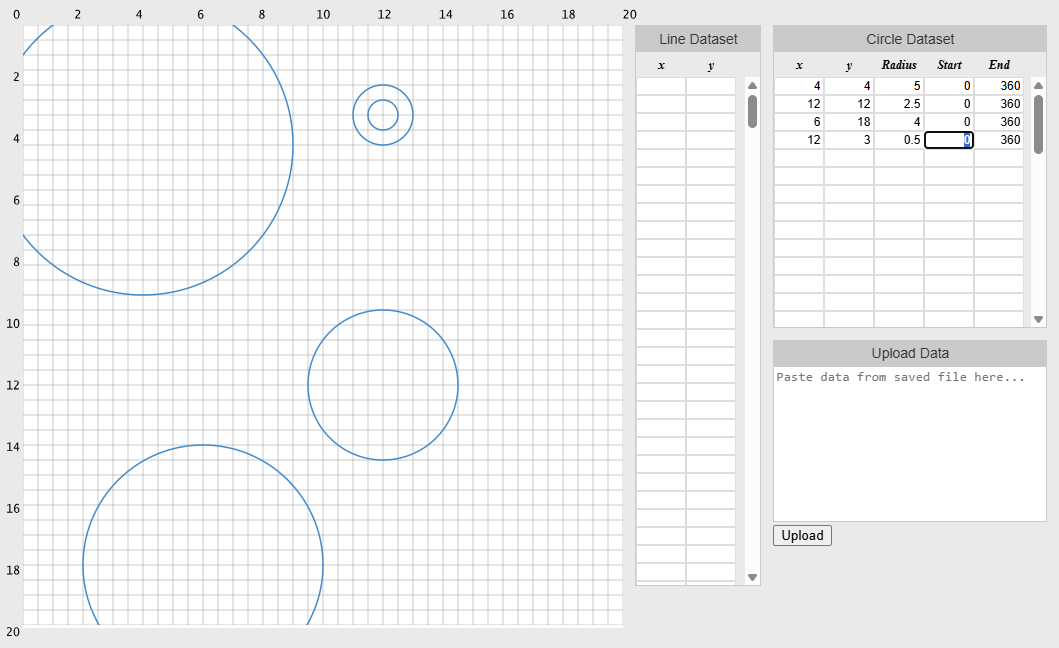
If you want to create circular shapes, enter the center point (x, y) and the radius. That will produce a circle. The same number restrictions count for the circle dataset too. So, x, y, and the radius cannot go above 20. Also, depending on your entries, the circle may go beyond the canvas. Usually, this is due to the size of the radius.
Of course, you can combine circular points with lines.
Arcs
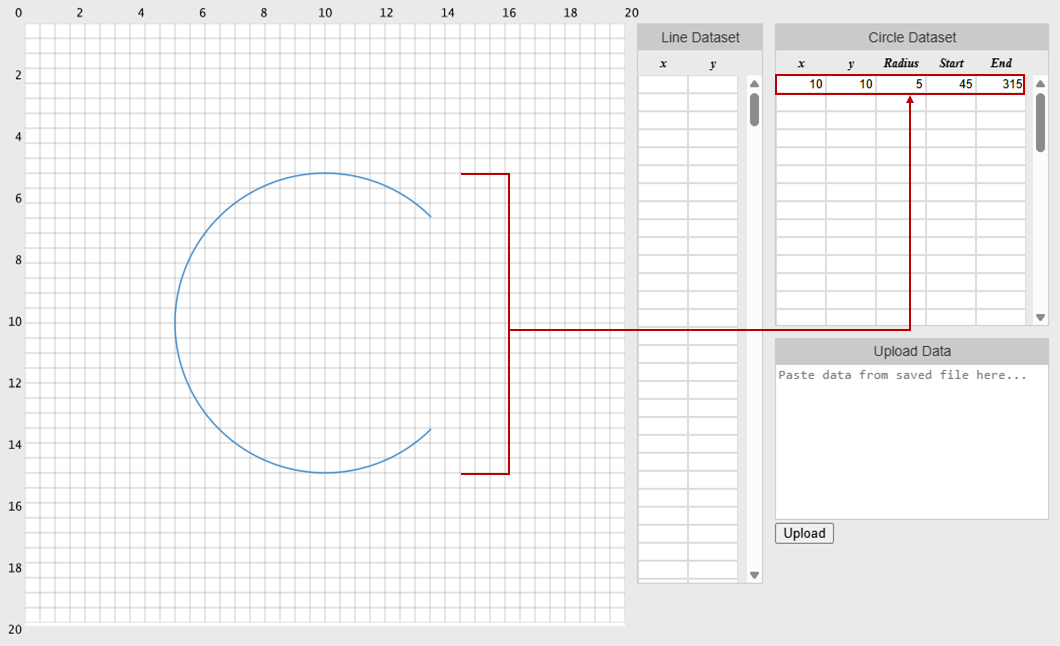
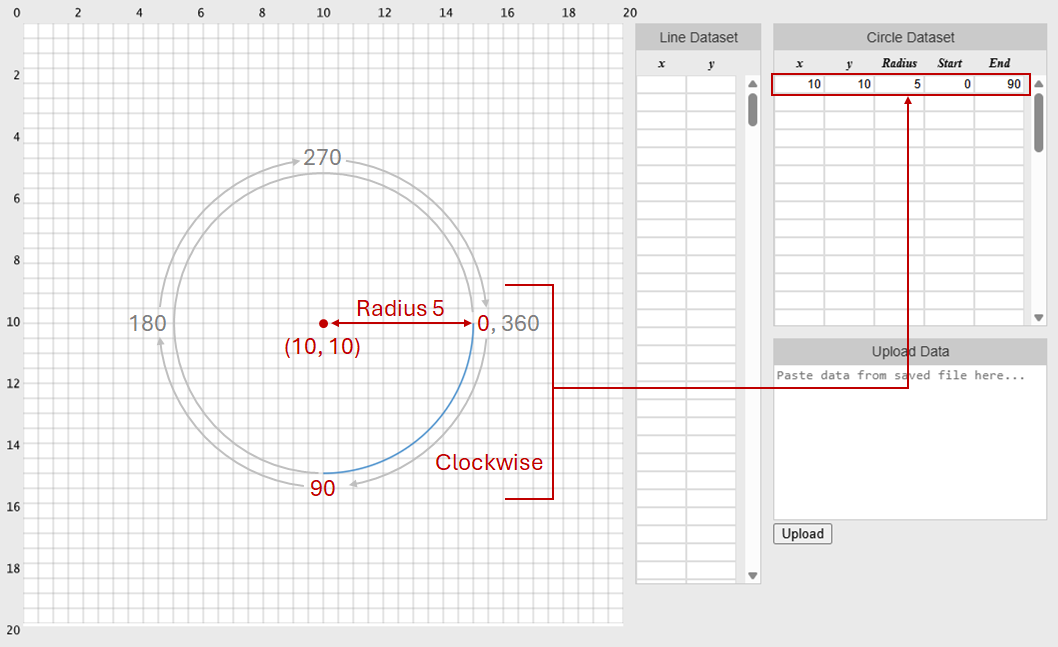
To create arcs, simply enter a value under Start and End, in the circle dataset. It rotates clockwise (moving to the left), 0 to 360. Decimal points are not allowed. However, you can have points above 360, just as long it is three digits or less.
Upload data
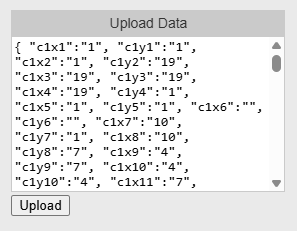
In order to upload data, you should have a saved design already. Simply open a saved design, which is a text file. Copy the text, and paste it in the upload data box. Then, press Upload. If it is an Artplotty file, then your design will appear on the canvas.
Tutorials
Overall, these quick tips and tutorials will help you greatly with using Artplotty.
Design codes
Guess what? We have design codes for various creations. Essentially, all you have to do is select the design code you want and bring it into Artplotty.
Click on the button below to obtain a design code.
Start it up
To start using the Artplotty Grid, click on the button below.
Requirements: Modern Internet browser