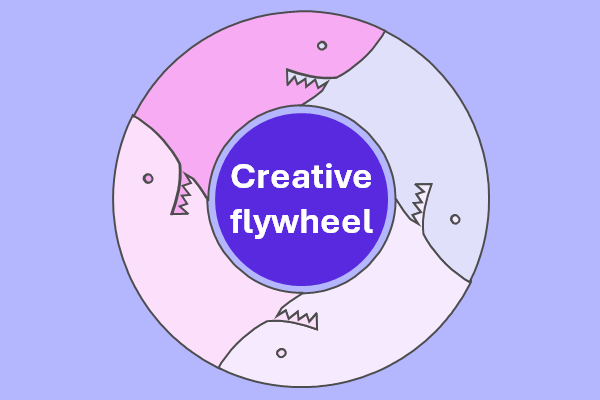
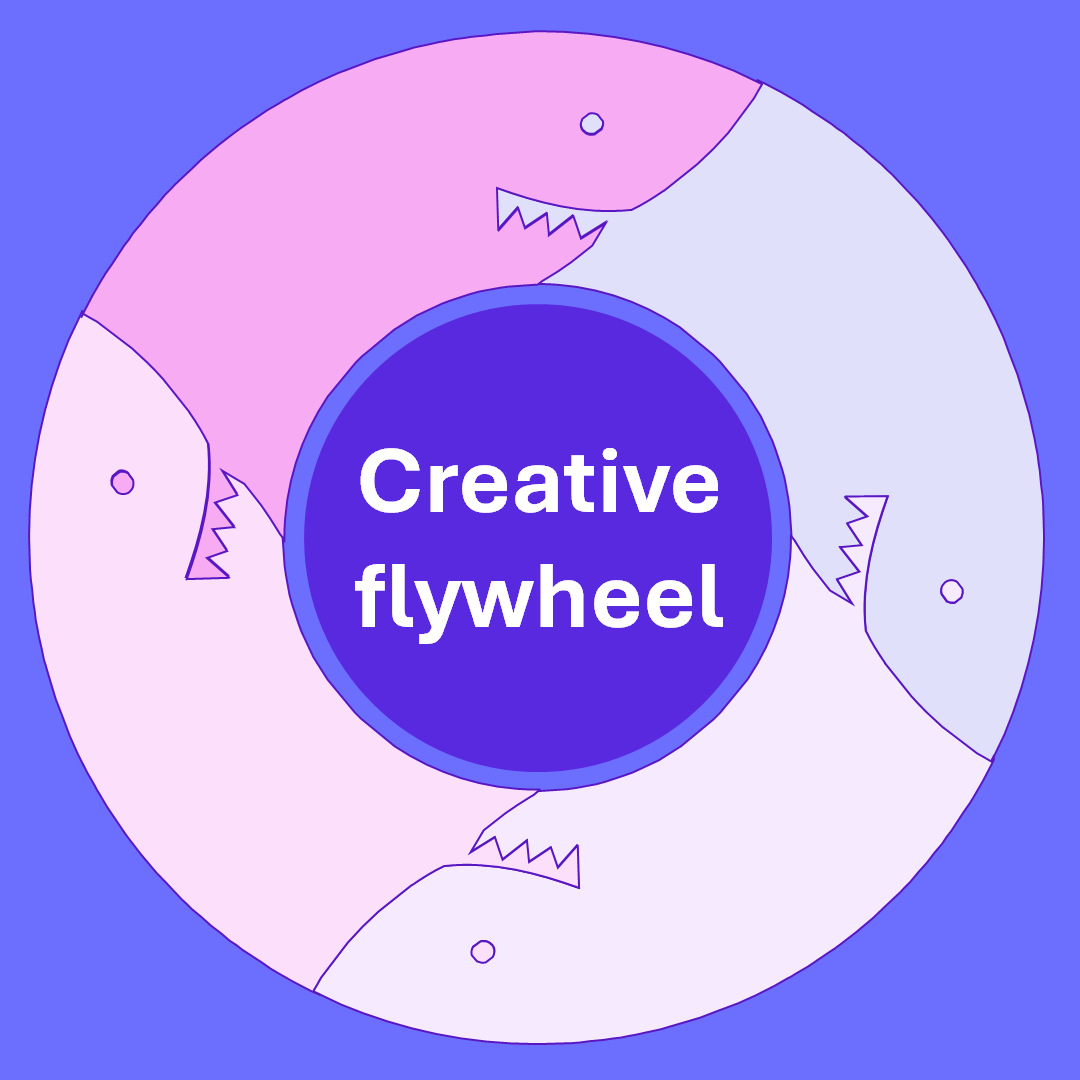
Overview of creative flywheel
We have an ideal to design a creative flywheel with the Donut Maker and Photoshop.
If you need a refresher on how to use the Donut Maker, then click on the learn button below. Otherwise, click Open tool to create a flywheel.

The process
Keep in mind, this is not a tutorial per se. Hence, we are just running you through the creative process.
Select flywheel type
So, select your flywheel or donut. In our case, we are using a four-piece sharks donut as shown below.
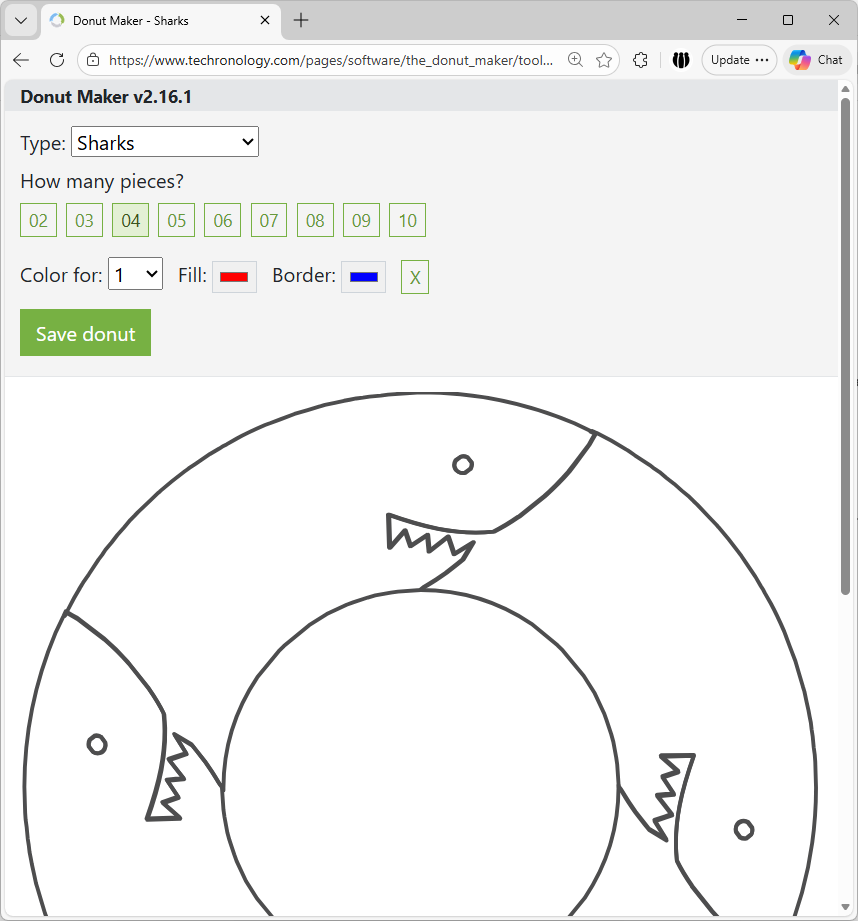
Once selecting a donut, click Save donut. It will place a PNG file on your desktop or downloads folder. Or, your destinated folder for downloads.
Open flywheel in Photoshop
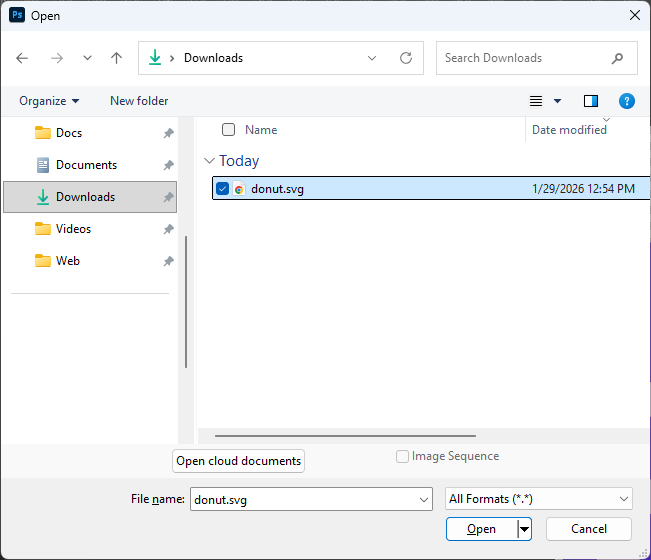
When you open your flywheel in Photoshop, it comes in as a nice size graphic. On our side, our image size is 1284 by 1282, at a resolution of 72 pixels per inch. Of course, you may use a different setting.
Below is the transparent graphic in Photoshop.
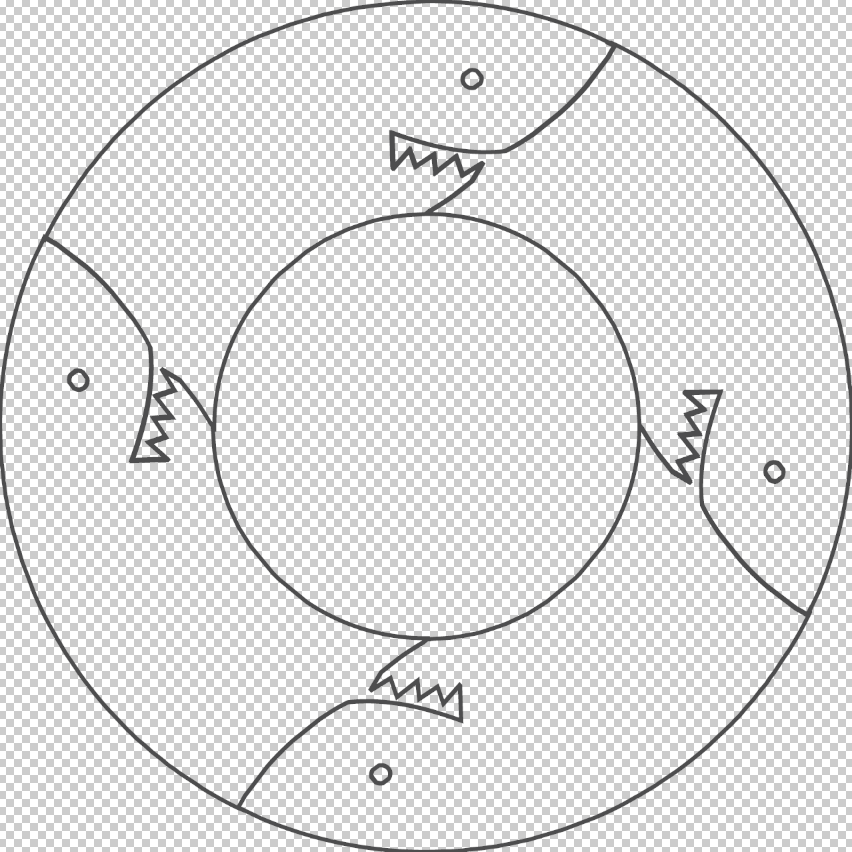
To colorize these sharks, we will use our own Techronology color scheme. Thus, we plan to marquee each shark and use coloring tools, such as the air brush to create something special.
The final creative flywheel design
Lastly, the final design. So, we hope it does not take too long to load on your system. Graphics are something else.
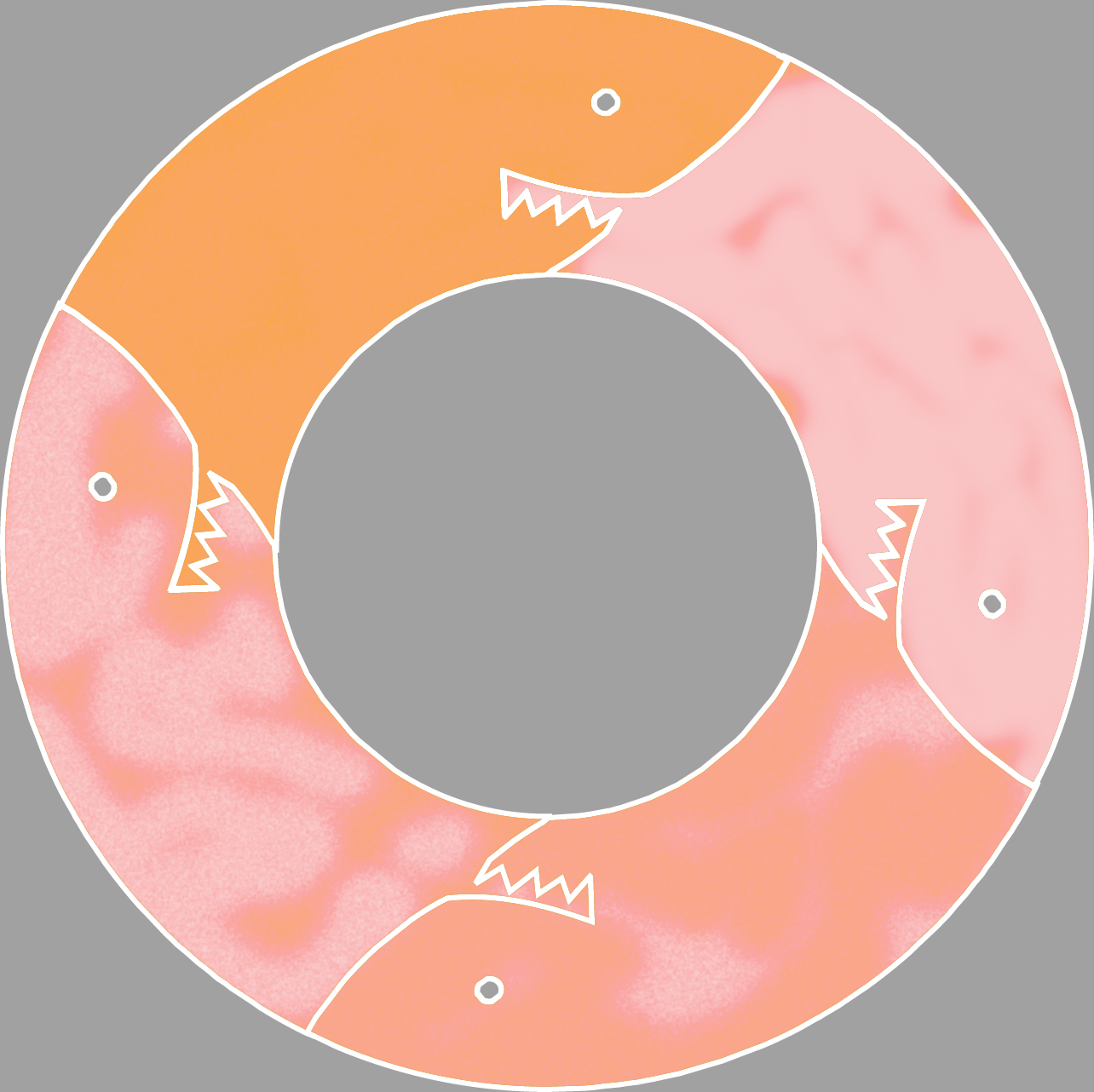
Oh, do you see what you can do here? So colorful, and these sharks could be swimmers, c-suite executives, employees, you name it. Also, you will be able to put your design in PowerPoint or even create a poster.