Overview on how to draw circles and arcs in APG21
So, this design tutorial shows you how to draw circles in Artplotty Grid (or APG21).
Quick glance of circles and arcs in APG21
Below are quick glances of circles and arcs. If you went through the APG21 line lesson, then this should be a piece of cake. In fact, this quick glance may be all your need. Somewhat like a refresher.
Circles
Firstly, here are some sample circles in APG21. To create a circle, enter the (x, y) coordinate and the radius, in the circle dataset. The (x, y) coordinate also represents the center of the circle.
For the purpose of this lesson, we will use the following syntax for circles:
Circle(x, y), radius
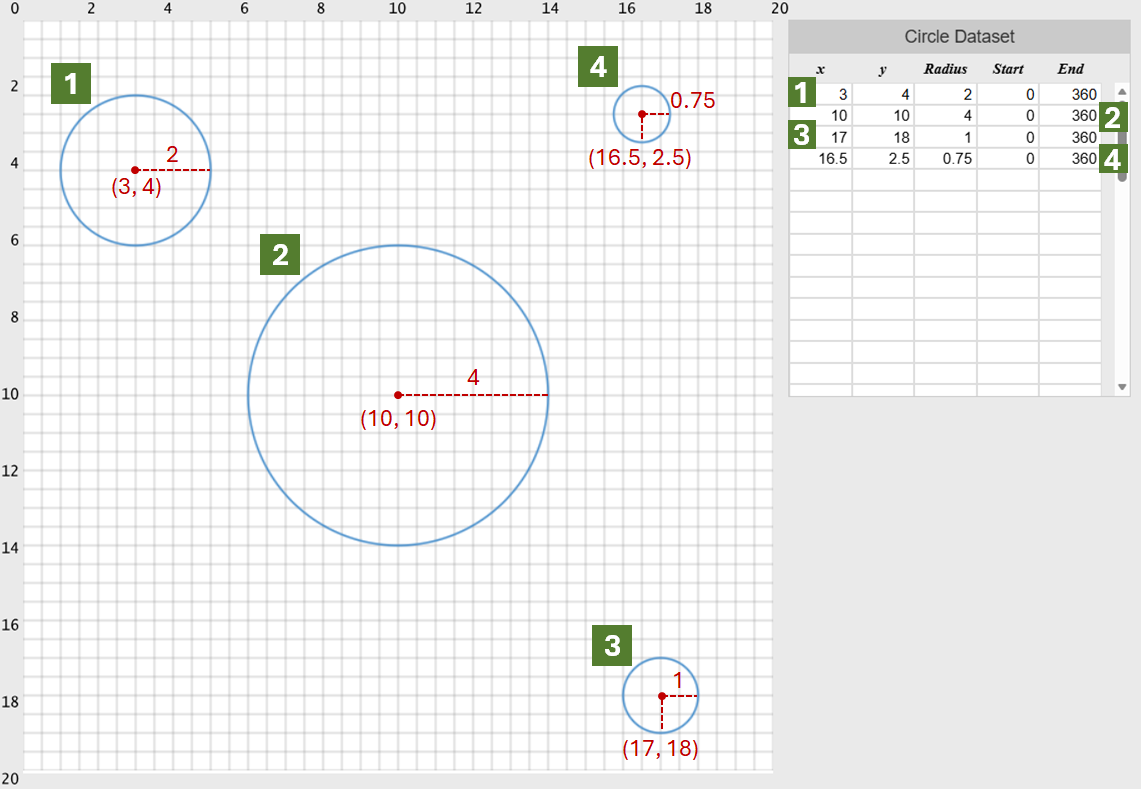
Enter the following coordinates in the circle dataset. Also, you can leave Start as 0 and End as 360.
- Circle(3, 4), 2
- Circle(10, 10), 4
- Circle(17, 18), 1
- Circle(16.5, 2.5), 0.75
Indeed, notice how you can use decimal places for all three variables.
Arcs
So, arcs are really pieces of a circle. To clarify, they do not necessarily rotate the full span of a circle. In trigonometry, you may have learned about the unit circle.
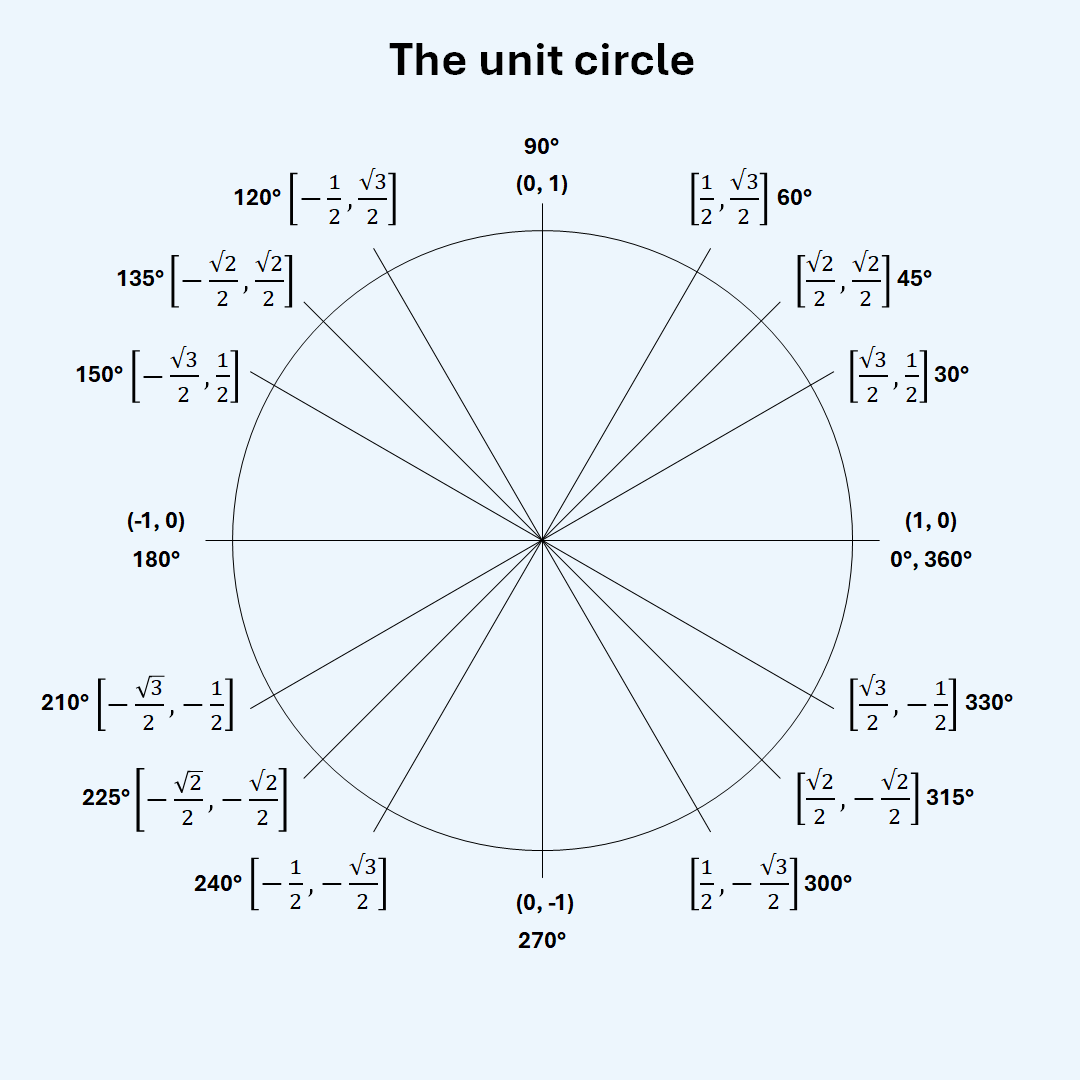
However, our unit circle for APG21 rotates clockwise. Thus, it is upside down, as shown below. It will take a little time to familiarize yourself to this unit circle. Therefore, we will show you examples.
Here are some example arcs in Artplotty. For the purpose of these examples, we will use the following syntax:
Circle(x, y), radius, start, end
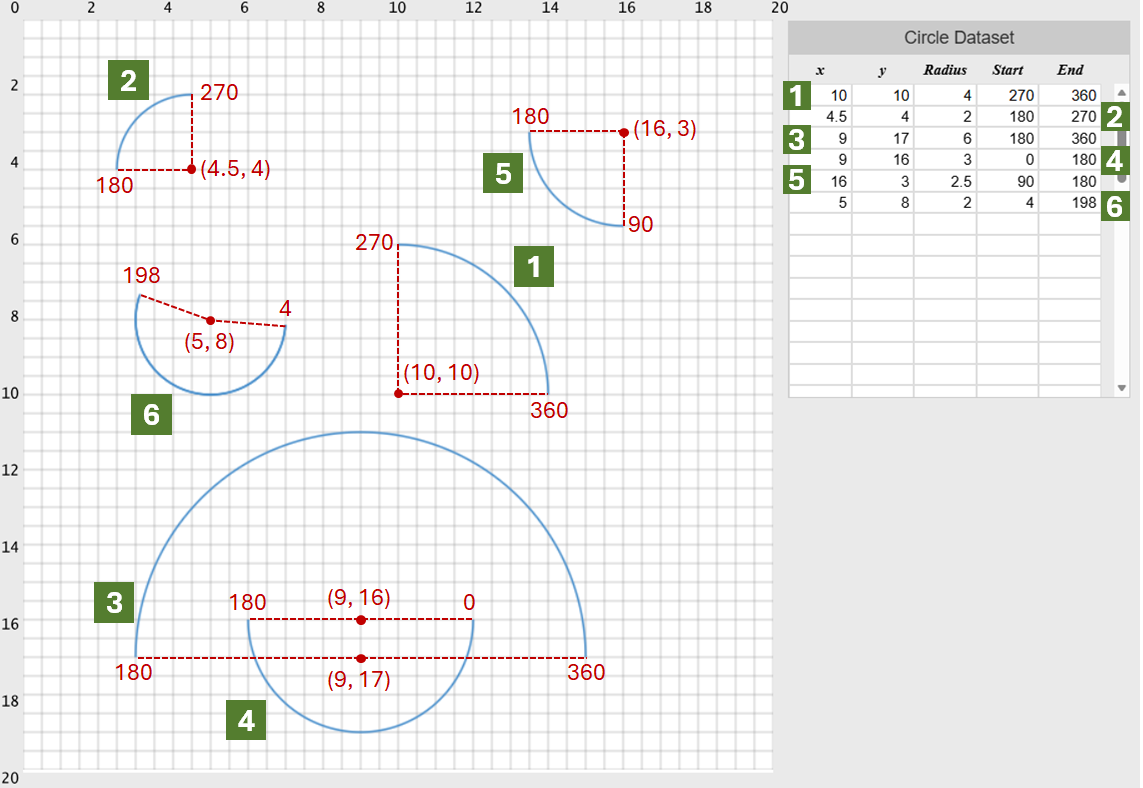
Enter the following coordinates in the circle dataset. Also, you may need to click Redraw to view the arcs.
- Circle(10, 10), 4, 270, 360
- Circle(4.5, 4), 2, 180, 270
- Circle(9, 17), 6, 180, 360
- Circle(9, 16), 3, 0, 180
- Circle(16, 3), 2.5, 90, 180
- Circle(5, 8), 2, 4, 198
Notice, these are all open arcs. In APG21, you will need to use the line dataset to connect the endpoints.
Keep in mind, drawing lines to arcs can be tedious and will involve estimating. But, it is still enjoyable once you see the end result.
Experiment and redraw
So, it is important to experiment and redraw, even on paper. Therefore, if you make a mistake on some points, simply click Redraw from the menu to view update.
A sample design with arcs
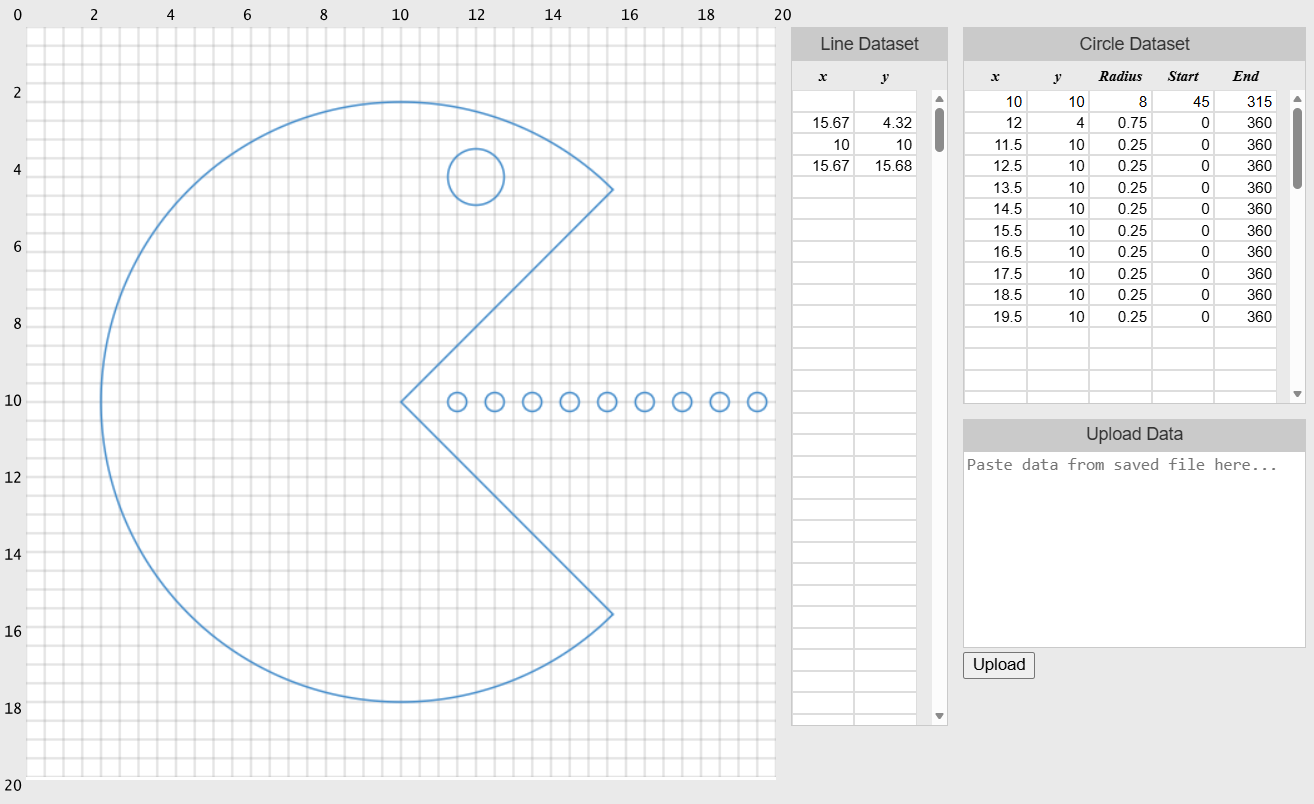
The following design in Artplotty is a very familiar character in gaming. It uses lines, circles, and arcs.
Start using APG21 to draw circles
Finally, click on one of the links below to get closer to Artplotty.
Requirements: Internet browser
Related
- Create a Pac-Man figure in Python with minimal code
- Create impossible box in APG21 – How to
- Creative circular designs by the Donut Maker
- Draw lines in APG21 – How to
- Draw two boxes in perspective with APG21 – How to
- Harvey Balls in PowerPoint for simple visual comparisons
- The 9 Best Free Graphic Design Tools I’ve Tried (and Loved!)
- Unit circle – Reference