Artplotty Grid 21
Move the creative and analytical part of your brain with numbers, lines, and circles.. Works best on a desktop monitor.
If you need no introduction, then click on the button below to start creating.
Quick glance at Artplotty Grid 21
Overview
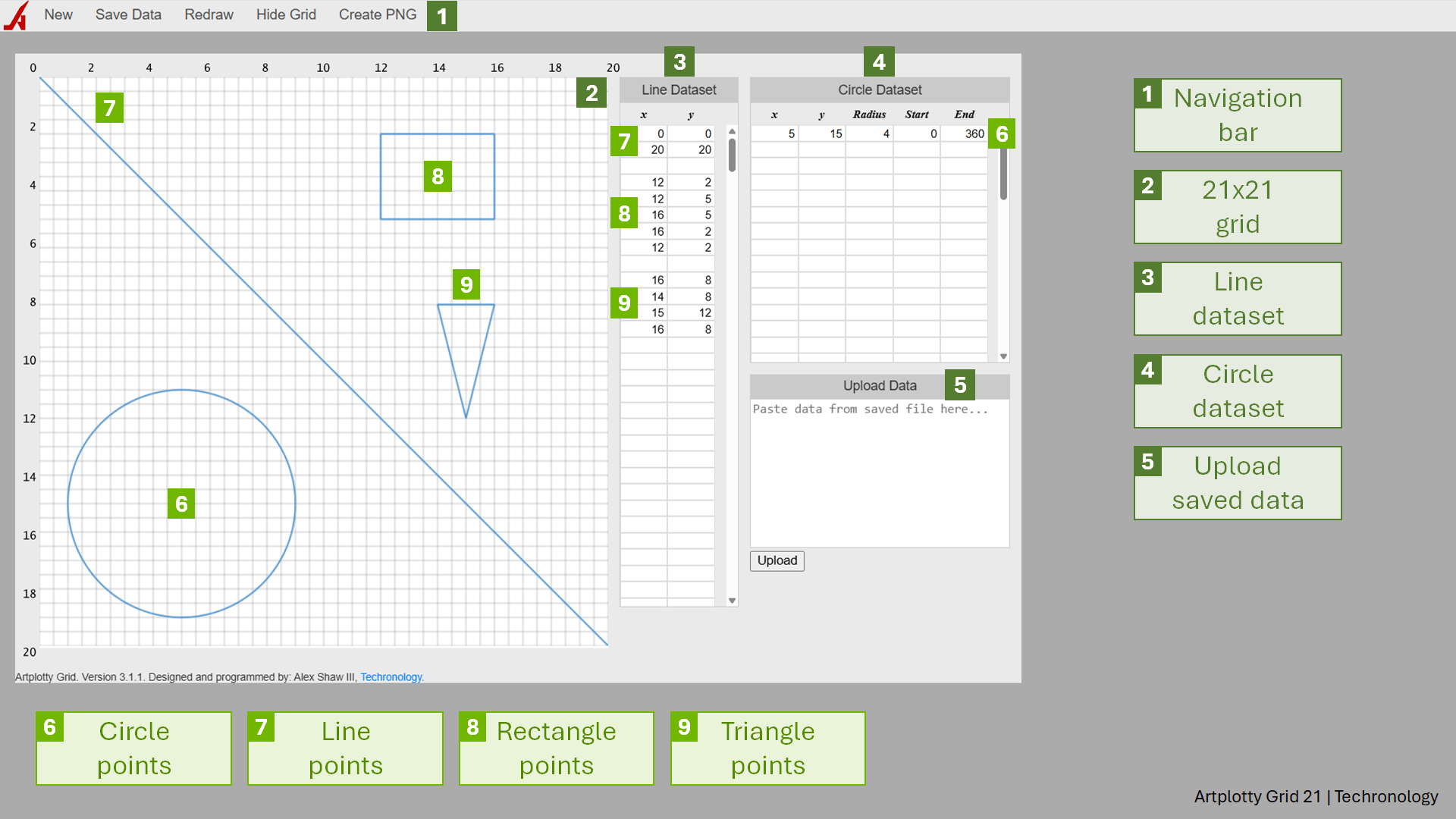
As you see, Artplotty Grid 21 (or APG21) has five main sections.
- Navigation barOn the navigation bar, you have the option to start a new creation, save data, redraw board, show or hide grid, and create a transparent image.
- 21x21 gridThe drawing grid spans from 0 to 20. Hence, a 21 point range including point 0. This grid is where your objects appear. The increments are set at 0.5, which makes the grid appear bigger.
- Line datasetWith the line dataset, you can plot up to 400 points. Now, that is a lot. Remember, the increment is 0.5. Therefore, you may have a point like (12.55, 6.7812), which opens your design to many possibilities.
- Circle datasetSo, you can have up to 50 circles in APG21. Additionally, with the start and end fields, creating arcs will be a breeze.
- Upload dataOnce you save your data, you can reload it at any time through the upload data box. Simply copy and paste the data from your saved file and press Upload button.
We will dive deeper with more detail and examples for each section of APG21.
Navigation bar
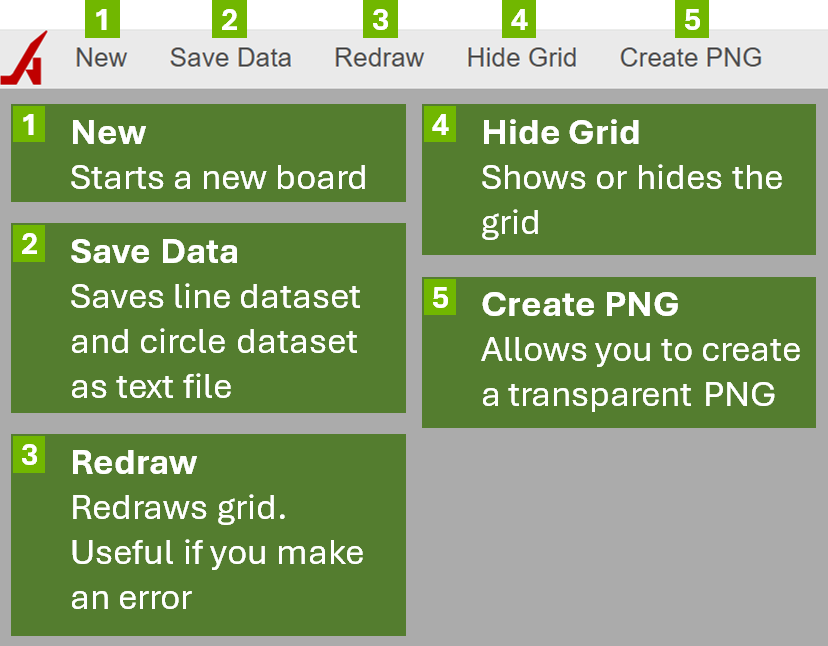
Here is a brief summary of the navigation bar.
- NewDisplays a new board. Reloading the page may not start a new board. Also, this clears the line and circle datasets.
- Save DataSaves both datasets in a text file, allowing you to reload it later.
- RedrawRedraws the grid. This is useful if you make a mistake and need to view your corrections. Otherwise, new points may overlap the mistakes.
- Hide GridThe hide grid option is a toggle that allows you to show or hide the grid.
- Create PNGAllows you to create a 600x600 transparent image, in PNG format, showing only the design on the grid. This does not include the gridlines.
Sample Artplotty creations
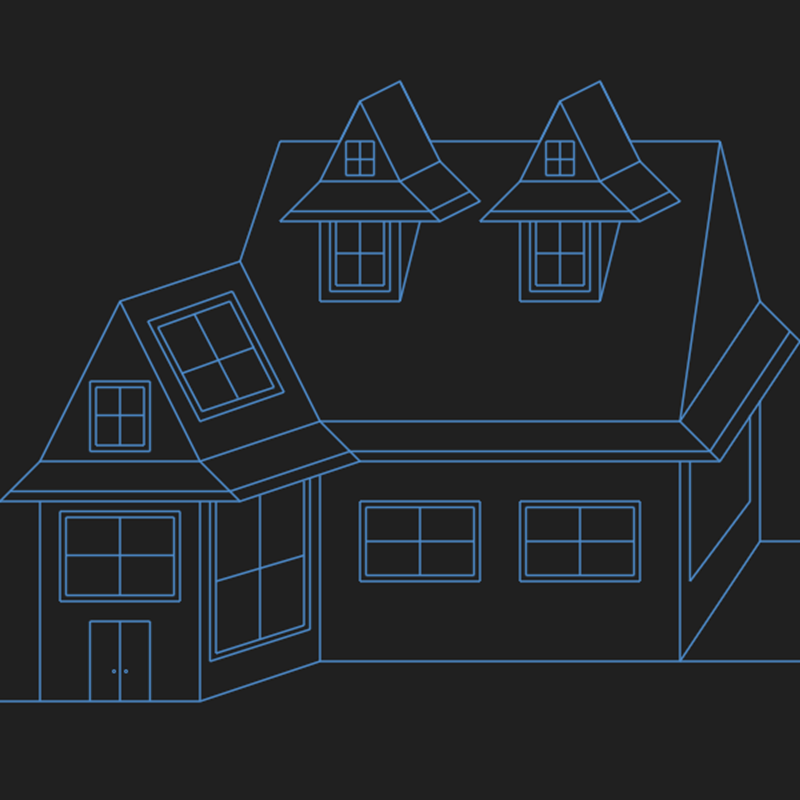
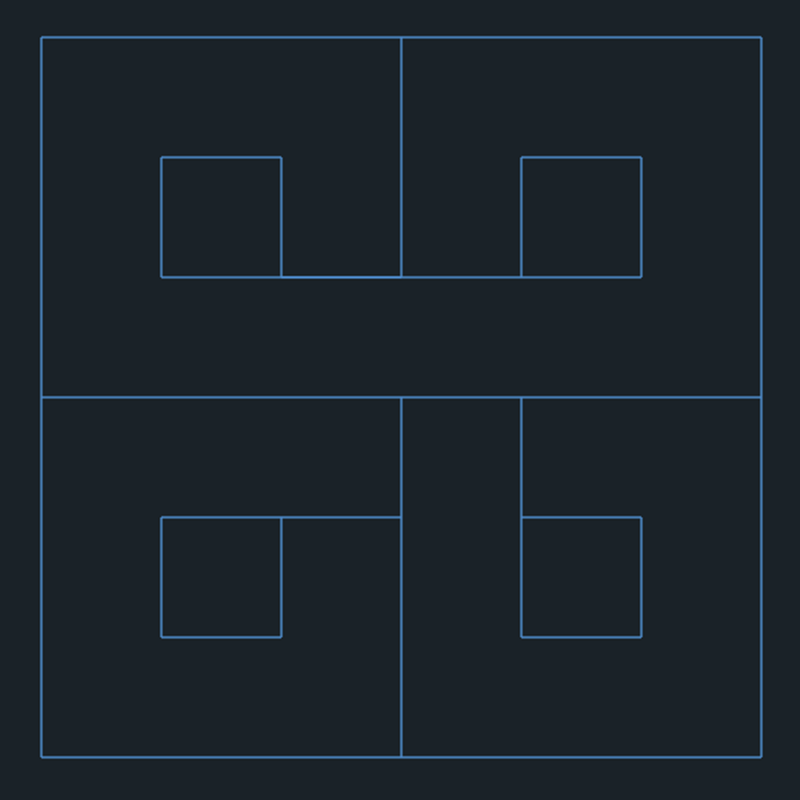
Below are some sample creations from APG21. Remember, when you select Create PNG from the menu, it produces a transparent image. See how creative you can be with APG.


Artplotty tutorials
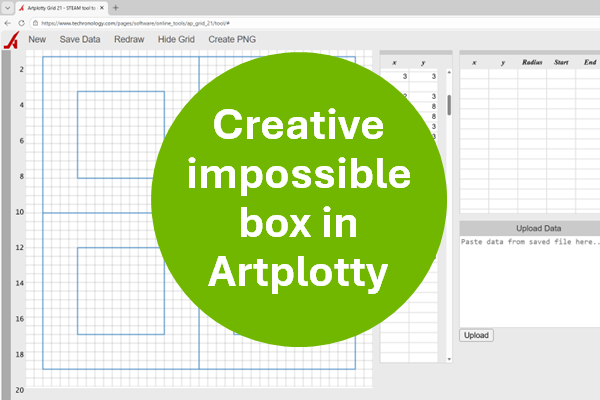
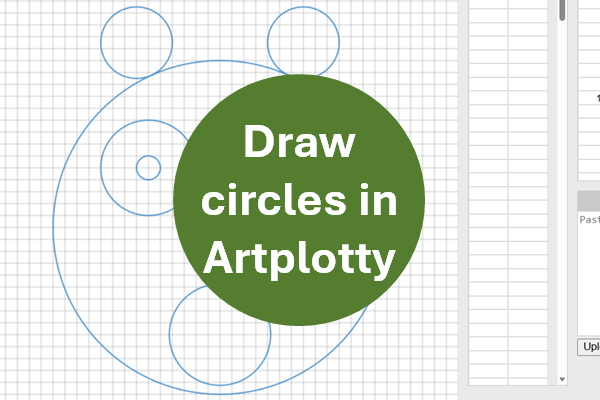
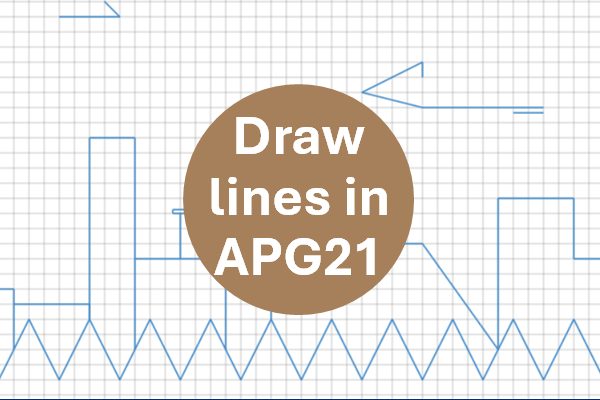
Below are some Artplotty Grid tutorials to help you get started using the program.
Start using APG21
Are you ready to start using Artplotty Grid 21?
If so, then click on the button below.
Related
Below are some items related to Artplotty Grid 21.