How to draw lines in APG21
This quick tutorial shows you how to draw lines in Artplotty Grid 21 (or APG21). Techronology suggests you use APG21 on a desktop computer or laptop.
If you need to launch APG21, then click on the button below.
Overview
Overall, use the line dataset to create straight lines, which you also form into shapes. For the purpose of this lesson, we will not close any shapes. They will all be open.
Create one line from (3,5) to (16,11)
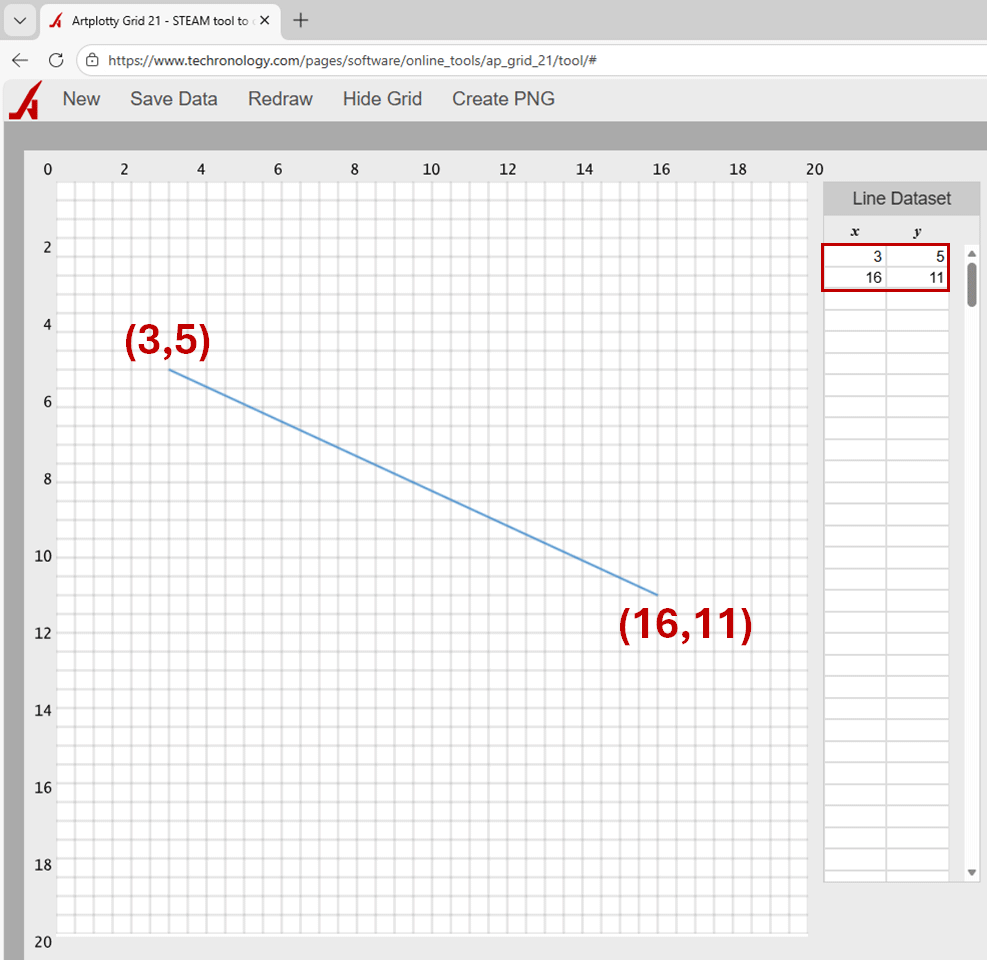
A line consists of two points. In the above example, we create a line that goes from point (3,5) to (16,11). Also, it works vice versa. Pretty simple. So, just enter these points in adjacent cells. No spaces inbetween.
Draw another line in separate place
Additionally, create another line from (1,14) to (18,14).
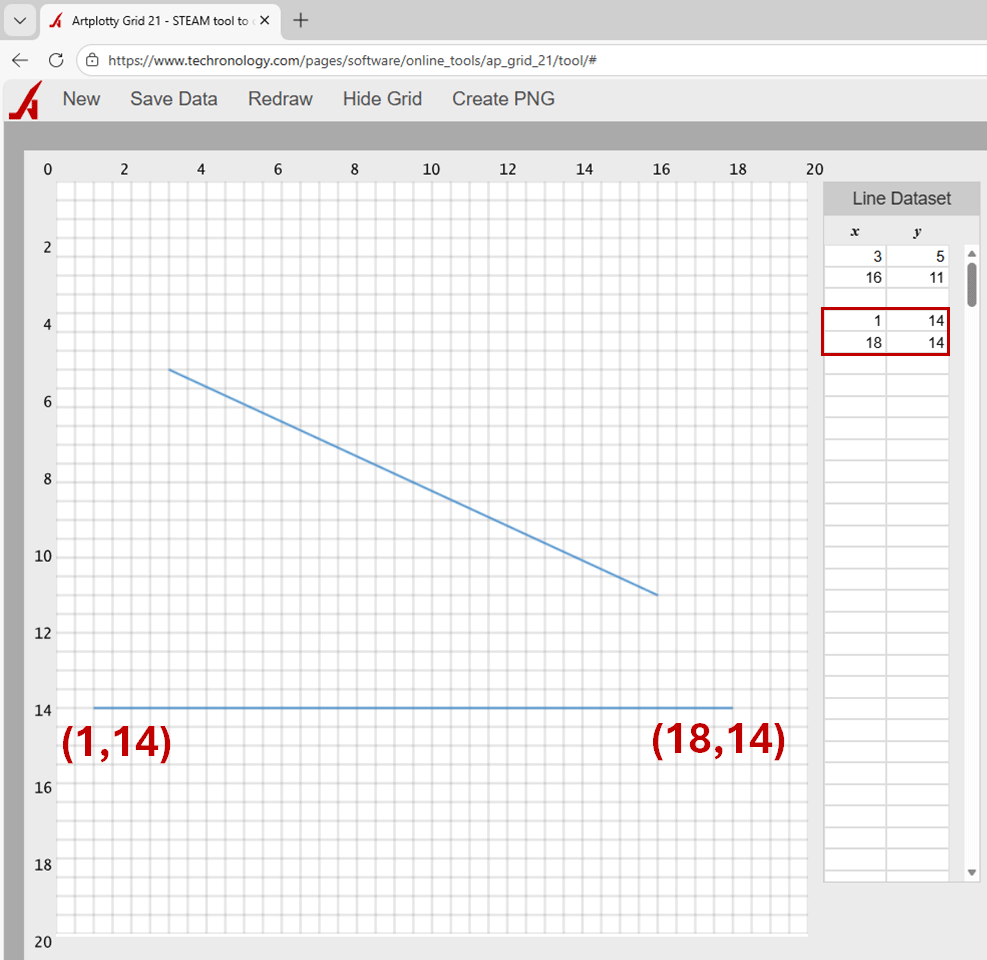
Notice how we start the new line with at least one spacer between the last points in the line dataset.
Continue the line
When you continue the line, things start to take shape.
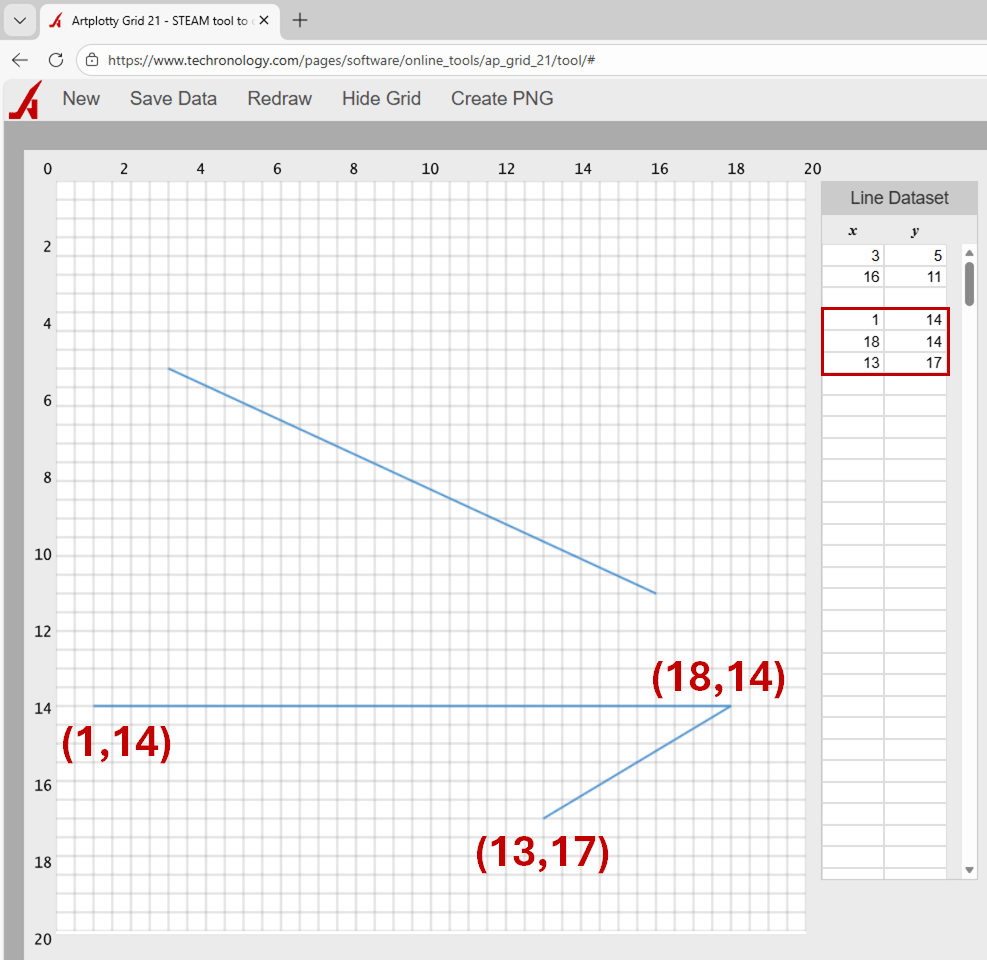
To continue the line, simply add another point right after the previous point in the dataset.
Remember, if you make a mistake, fix it and click Redraw from the menu.
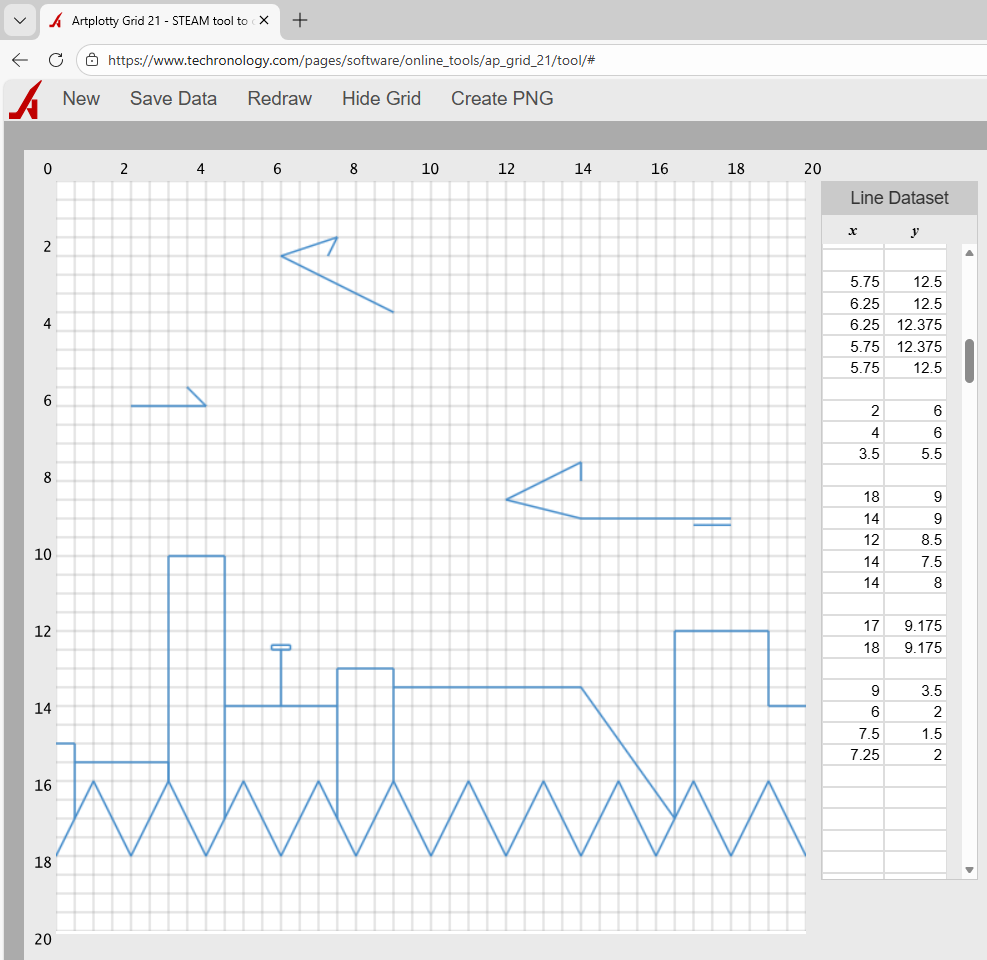
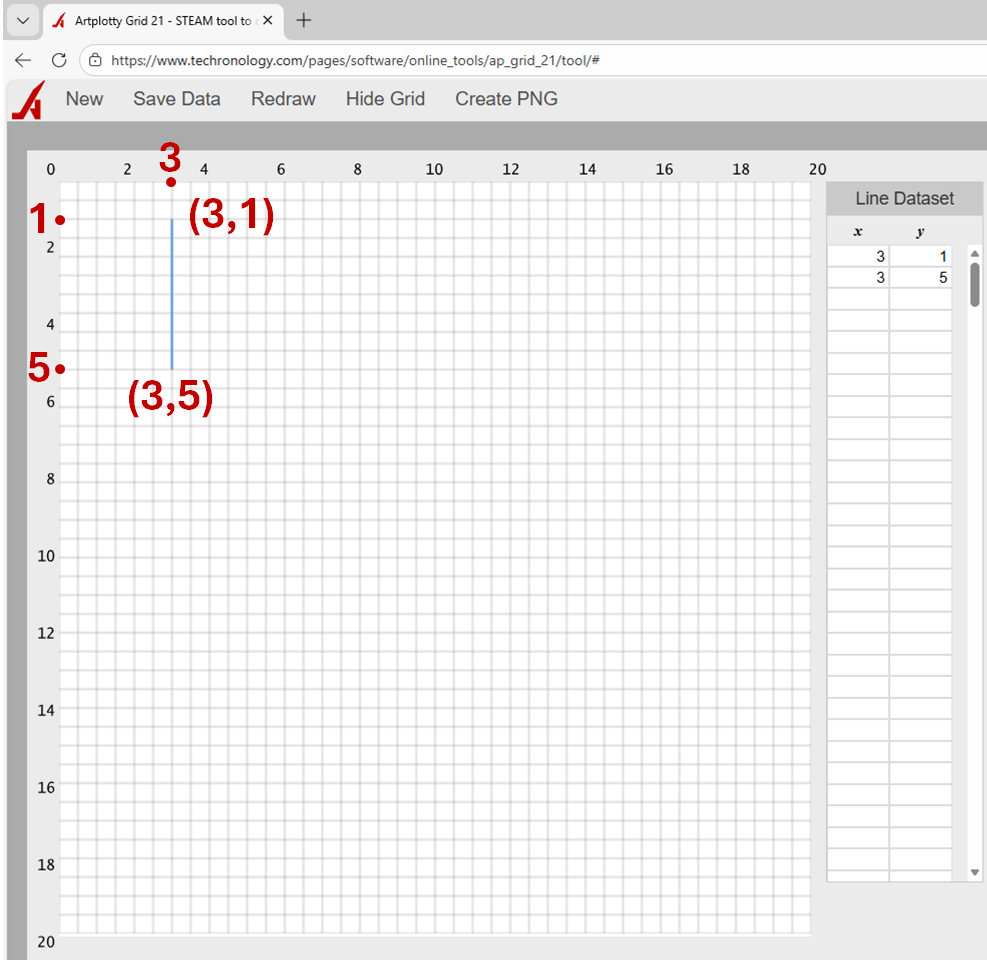
Also, notice how we use numbers you do not see on either axis, like (13,17). There are four boxes between each point. Therefore, if you use whole numbers between 0 and 2, it would be 0, 1, and 2. See example below.
Decimal numbers
In APG21, you can have up to 6 places, including the decimal point. Therefore, with numbers below 10, you can have four decimal places. Numbers ten and above can hold only three decimal places.
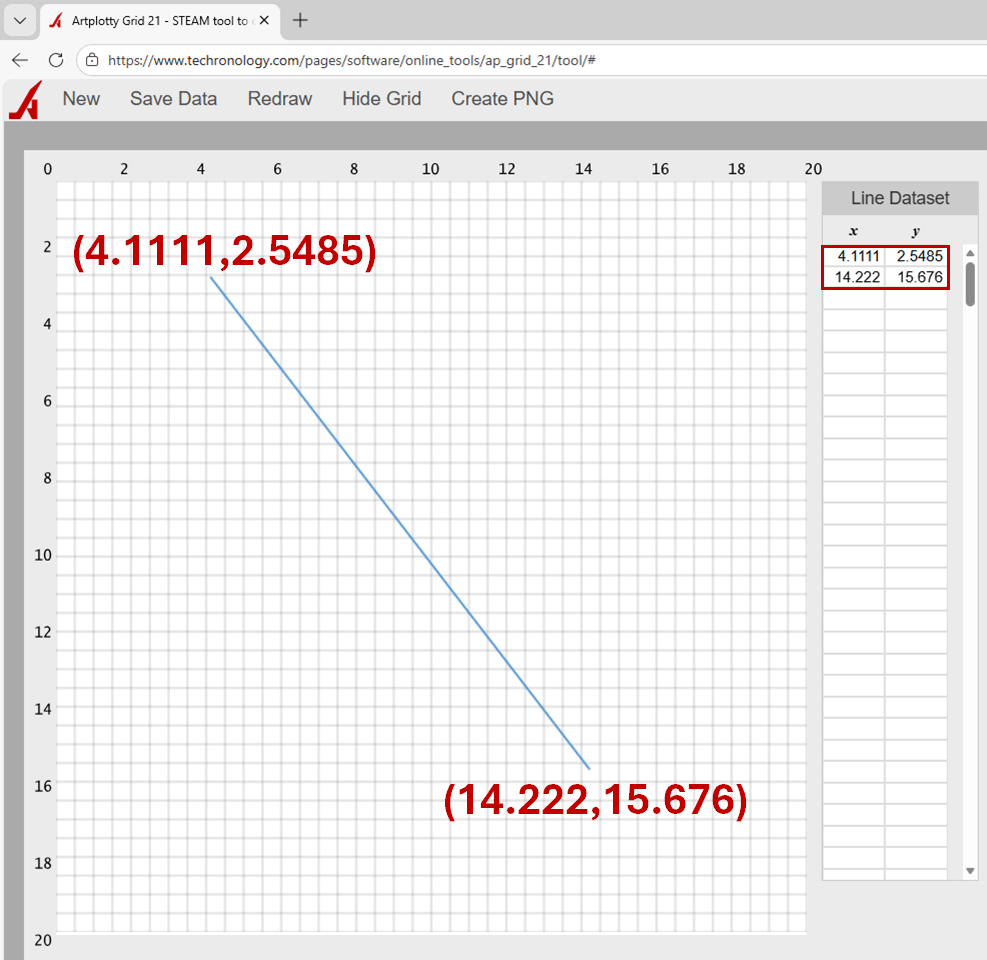
Imagine how deep your design goes with decimal places. Then, you save it, perhaps sell it as an art piece. Perhaps we are going too far. But, you know what we mean. Anything is possible.
Save your work
So, do not forget to save your work. Also, feel free to create a transparent PNG. Finally, PNG looks great in presentation programs and design apps.
Success!
Of course, you were successful creating these lines. If not, give it another shot. From our viewpoint, it is pretty simple.
Going forward, you are now ready to create bigger things.
Related
- Create shadow border on PowerPoint shape – How-to
- Creative circular designs by the Donut Maker
- Design creative chart from financial news channel – How to
- Draw circles and arcs in APG21 – How to
- Draw two boxes in perspective with APG21 – How to
- The 9 Best Free Graphic Design Tools I’ve Tried (and Loved!)
- The Donut Maker